---
title: How to integrate with Personio
description: A step by step guide showing how to set up an integration between Ravio and Personio
---
[Skip to content](https://help.ravio.com/personio#main-content)
English
Show submenu for translations

Open main navigation
Close main navigation
- English
Show submenu for translations
- [Contact us](https://fa3fd.share-eu1.hsforms.com/2IkfMVpstTUWvffP5uESSLg)
[Contact us](https://fa3fd.share-eu1.hsforms.com/2IkfMVpstTUWvffP5uESSLg)
How can we help you?
- There are no suggestions because the search field is empty.
1. [Ravio Help Centre](https://help.ravio.com/?hsLang=en)
2. [Integrations and data sharing](https://help.ravio.com/integrations-and-data-sharing?hsLang=en)
3. [Setting up your HRIS integration](https://help.ravio.com/integrations-and-data-sharing?hsLang=en#setting-up-your-hris-integration)
# How to integrate with Personio
## A step by step guide showing how to set up an integration between Ravio and Personio
### Video guide
Watch the below video to understand how to set up the integration between Ravio and Personio.
### Step by Step Integration Setup Instructions
#### **Standard, Full-Flow, Onboarding**
### **Step 1 - Navigate to API Credentials**
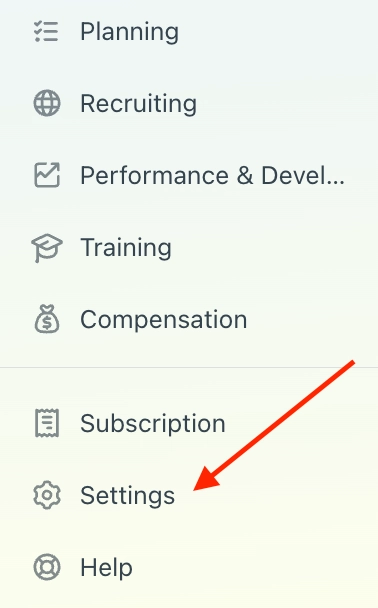
Log in to Personio and navigate to “Settings” in the menu on the left hand side of the screen. “Settings” is located towards the bottom of the menu.
Select the integrations tile from the settings page, and choose “API credentials”.

### **Step 3 - Setting up the Ravio App via Personio Marketplace**
1. Click on “Go to Marketplace”, search for Ravio and select it to read more details about what this contains.

2. All but one of the relevant fields will be pre-selected for you, so you don’t need to make any changes to the list other than adding one field (see the note below).
Click on “Connect” and choose “Generate New API Credential” in the next step.

👉 **Important Note**: When using the marketplace integration setup, you will still have to manually add one Personio data field to make sure Ravio has all of the required fields for the integration: “Birthday” / “Date of Birth”. You can do this by making sure the field is selected in “Readable Employee Attributes” dropdown per the screenshots below.

*The “Readable Employee Attributes” dropdown and the Birthday field being manually selected.*
1. Once this is done, save the integration.
2. **Make sure to make a copy of both the Personio Client ID and Client Secret that are generated!**
### **Step 4 - Entering the information in Ravio**
Now return to the onboarding flow on the [Ravio](http://Ravio.com) website. (A personal onboarding link will have been shared with you by your Ravio contact). When being prompted to “Connect your HR System”, make sure to select Personio.
1. Click on Continue and find your Personio Domain (this is the domain you use to log in to Personio). If you open your Personio login page, you should be able to view your domain.
2. Copy and paste this domain into Ravio
3. Copy the API credentials that you’ve generated as part of the integration setup, and paste them into your Ravio account when prompted. Click submit.
#### Anonymous Onboarding
❓ If you are onboarding anonymously, follow the same steps as the Standard onboarding. However, when you get to step 3, make sure that you unselect the PII fields outlined below (Name & Email).
#### Required Fields
Under “readable employee attributes” select all of the fields outlined below.
| **Personio Data Field** | **Full Flow** | Anonymous Flow |
| --- | --- | --- |
| First name | ✅ | |
| Last name | ✅ | |
| Email | ✅ | |
| Employee ID / Employee Number | ✅ | ✅ |
| Supervisor / Manager | ✅ | ✅ |
| Employment Status | ✅ | ✅ |
| Salary (Fixed Salary, Salary Type, Salary Interval, Variable Salary, Equity) | ✅ | ✅ |
| Currency | ✅ | ✅ |
| Pay Period | ✅ | ✅ |
| Start Date | ✅ | ✅ |
| Position / Job Title | ✅ | ✅ |
| Department / Team | ✅ | ✅ |
| Employment type (full-time, part-time,...) | ✅ | ✅ |
| Status | ✅ | ✅ |
| Location (Office) | ✅ | ✅ |
| Termination Date | ✅ | ✅ |
| Cost Centre | ✅ | ✅ |
| Date of Birth / Birthday \**optional* | 🟢 | 🟢 |
| Gender \**optional* | 🟢 | 🟢 |
| Level / Seniority level \**optional* | 🟢 | 🟢 |
👉 **Important Note**: If you are storing any of the data points above in custom fields (e.g. Internal Level / Grade is a common custom field), **please select the custom field that your company is using instead of the standard Personio field.**
### Variable Pay
Ravio requires that any variable pay or bonus data is shared in a structure in line with the below. Not all the below fields are required so check with your Customer Success Manager in case you structure variable pay differently!
This can only be pulled from Personio using custom fields.
**Bonus / Commission**
- Target Amount / Target %
- Currency
- Frequency
- Effective Date
- Reason
For Personio this means that we need to expand the integration to include the fields that you store variable pay in. Steps on how to do this are below:
#### Step 1 - Navigate to the Ravio Integration
Go to Settings \> API Credentials and click on the Ravio integration to edit which permissions and fields it has access to.
#### Step 2 - Expand the supported fields to include the Variable Pay fields
In the field dropdown list at the bottom, select the bonus and/or commission fields to grant the integration access.
Then click update, and Ravio now has access to these fields!
- [Getting started](https://help.ravio.com/getting-started?hsLang=en#main-content)
- [Onboarding](https://help.ravio.com/getting-started?hsLang=en#onboarding)
- [Benchmarking](https://help.ravio.com/getting-started?hsLang=en#benchmarking)
- [Pay equity](https://help.ravio.com/getting-started?hsLang=en#pay-equity)
- [Video guides](https://help.ravio.com/getting-started?hsLang=en#video-guides)
- [Using Ravio with AI tools](https://help.ravio.com/getting-started?hsLang=en#using-ravio-with-ai-tools)
- [Integrations and data sharing](https://help.ravio.com/integrations-and-data-sharing?hsLang=en#main-content)
- [Setting up your HRIS integration](https://help.ravio.com/integrations-and-data-sharing?hsLang=en#setting-up-your-hris-integration)
- [Variable and equity data](https://help.ravio.com/integrations-and-data-sharing?hsLang=en#variable-and-equity-data)
- [Manually sharing employee data](https://help.ravio.com/integrations-and-data-sharing?hsLang=en#manually-sharing-employee-data)
- [Setting up your ATS integration](https://help.ravio.com/integrations-and-data-sharing?hsLang=en#setting-up-your-ats-integration)
- [Managing your integration](https://help.ravio.com/integrations-and-data-sharing?hsLang=en#managing-your-integration)
- [Video guides](https://help.ravio.com/integrations-and-data-sharing?hsLang=en#video-guides)
- [Ravio feature guides](https://help.ravio.com/ravio-feature-guides?hsLang=en#main-content)
- [Salary bands](https://help.ravio.com/ravio-feature-guides?hsLang=en#salary-bands)
- [Explore the market](https://help.ravio.com/ravio-feature-guides?hsLang=en#explore-the-market)
- [Employee mapping & levelling](https://help.ravio.com/ravio-feature-guides?hsLang=en#employee-mapping-levelling)
- [Manage my data](https://help.ravio.com/ravio-feature-guides?hsLang=en#manage-my-data)
- [Settings](https://help.ravio.com/ravio-feature-guides?hsLang=en#settings)
- [Analyse your company](https://help.ravio.com/ravio-feature-guides?hsLang=en#analyse-your-company)
- [EU Pay Transparency](https://help.ravio.com/ravio-feature-guides?hsLang=en#eu-pay-transparency)
- [User and access management](https://help.ravio.com/user-and-access-management?hsLang=en#main-content)
- [User permissions](https://help.ravio.com/user-and-access-management?hsLang=en#user-permissions)
- [Single Sign On (SSO)](https://help.ravio.com/user-and-access-management?hsLang=en#single-sign-on-sso)
- [Benchmarking and data confidence](https://help.ravio.com/benchmarking-and-data-confidence?hsLang=en#main-content)
- [Data](https://help.ravio.com/benchmarking-and-data-confidence?hsLang=en#data)
- [Troubleshooting and support](https://help.ravio.com/troubleshooting-and-support?hsLang=en#main-content)
- [Contact support](https://help.ravio.com/troubleshooting-and-support?hsLang=en#contact-support)
- [FAQ](https://help.ravio.com/faq?hsLang=en#main-content)
- [Billing and invoices](https://help.ravio.com/faq?hsLang=en#billing-and-invoices)
- [Compliance](https://help.ravio.com/faq?hsLang=en#compliance)
- [Ravio community](https://help.ravio.com/faq?hsLang=en#ravio-community)
- [Sales](https://help.ravio.com/faq?hsLang=en#sales)
- [Integrations](https://help.ravio.com/integrations?hsLang=en)
- [Uncategorized](https://help.ravio.com/uncategorized?hsLang=en)
- Home
- Products
- Pricing
- Blog
- Company
[](http://ravio.com)
[mailto:hello@ravio.com](mailto:hello@ravio.com)
Copyright © 2026, Ravio Technologies Ltd