---
title: How to integrate with Paylocity
description: A step by step guide detailing how to set up an integration between Ravio and Paylocity
---
[Skip to content](https://help.ravio.com/paylocity#main-content)
English
Show submenu for translations

Open main navigation
Close main navigation
- English
Show submenu for translations
- [Contact us](https://fa3fd.share-eu1.hsforms.com/2IkfMVpstTUWvffP5uESSLg)
[Contact us](https://fa3fd.share-eu1.hsforms.com/2IkfMVpstTUWvffP5uESSLg)
How can we help you?
- There are no suggestions because the search field is empty.
1. [Ravio Help Centre](https://help.ravio.com/?hsLang=en)
2. [Integrations and data sharing](https://help.ravio.com/integrations-and-data-sharing?hsLang=en)
3. [Setting up your HRIS integration](https://help.ravio.com/integrations-and-data-sharing?hsLang=en#setting-up-your-hris-integration)
# How to integrate with Paylocity
## A step by step guide detailing how to set up an integration between Ravio and Paylocity
### **Overview**
To authenticate Paylocity, you will need to provide the following information:
- Client ID
- Client Secret
- Company ID
This guide will walk you through finding or creating those credentials within Paylocity.
### **Step by Step Instructions**
#### **Step 1 - Submit API Access Form to Paylocity Support**
To access Paylocity’s APIs the first step is a form submitted to Paylocity Support to enable this functionality for your company.
🚨 **You can download the form [here](https://docs.paylocity.com/Knowledge/Partner%20Integration/Paylocity%20Web%20Services_Access%20Request.pdf).**
### **How to fill in the form**
- **Page 1:** Fill this page out with your company details.
- **Page 2:** Please fill it in with the information provided in the connection flow. You can also find an example of the Ravio required scopes below.
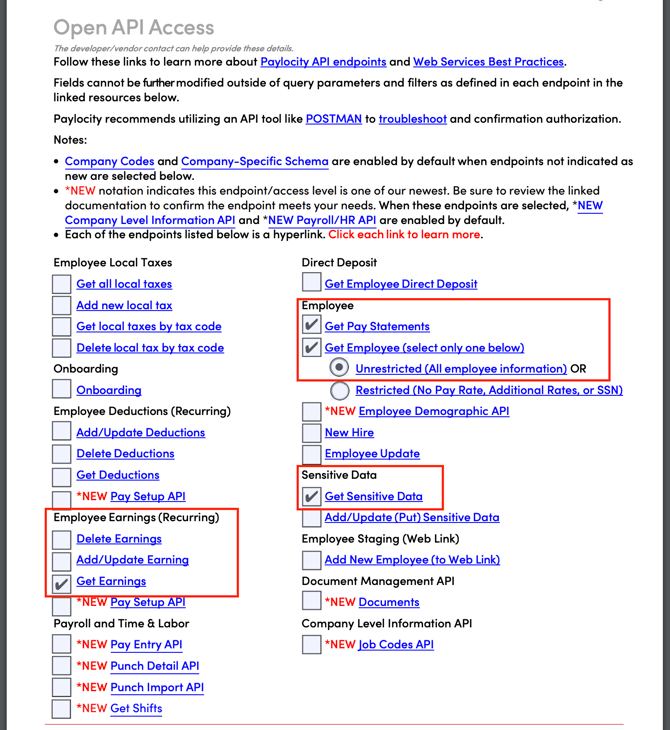
- **Page 3**: You can leave this page blank. Ravio has no requirement for sending data back to Paylocity.
- **Page 5**: Fill out and sign this page.
This application form then needs to be emailed to both:
- [webservices@paylocity.com](mailto:webservices@paylocity.com) & [service@paylocity.com](mailto:service@paylocity.com)
An example email body is:
```
Subject: Requesting Client ID and Client SecretHi Paylocity team, Can we get access to a Client ID and Client Secret for API access? ().We have attached the form specifying relevant permissions.
```
#### Step 2 - Enter Credentials into Ravio
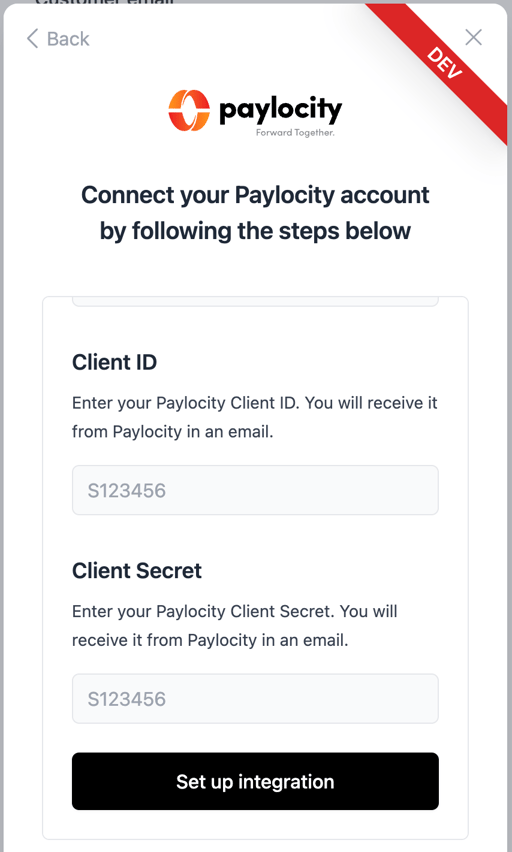
Once you have received the API credentials from Paylocity, enter them into the Ravio onboarding flow along with your Company ID.
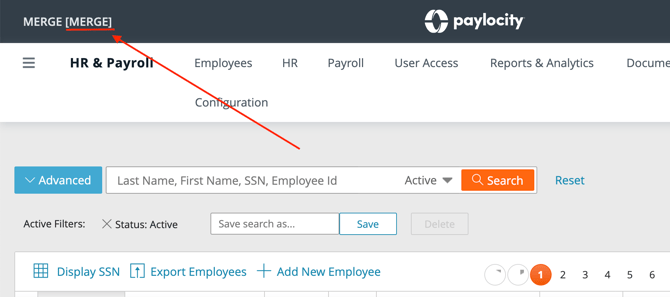
The Company ID can be found in the Paylocity web application next to your company name in brackets.
- [Getting started](https://help.ravio.com/getting-started?hsLang=en#main-content)
- [Onboarding](https://help.ravio.com/getting-started?hsLang=en#onboarding)
- [Benchmarking](https://help.ravio.com/getting-started?hsLang=en#benchmarking)
- [Pay equity](https://help.ravio.com/getting-started?hsLang=en#pay-equity)
- [Video guides](https://help.ravio.com/getting-started?hsLang=en#video-guides)
- [Using Ravio with AI tools](https://help.ravio.com/getting-started?hsLang=en#using-ravio-with-ai-tools)
- [Integrations and data sharing](https://help.ravio.com/integrations-and-data-sharing?hsLang=en#main-content)
- [Setting up your HRIS integration](https://help.ravio.com/integrations-and-data-sharing?hsLang=en#setting-up-your-hris-integration)
- [Variable and equity data](https://help.ravio.com/integrations-and-data-sharing?hsLang=en#variable-and-equity-data)
- [Manually sharing employee data](https://help.ravio.com/integrations-and-data-sharing?hsLang=en#manually-sharing-employee-data)
- [Setting up your ATS integration](https://help.ravio.com/integrations-and-data-sharing?hsLang=en#setting-up-your-ats-integration)
- [Managing your integration](https://help.ravio.com/integrations-and-data-sharing?hsLang=en#managing-your-integration)
- [Video guides](https://help.ravio.com/integrations-and-data-sharing?hsLang=en#video-guides)
- [Ravio feature guides](https://help.ravio.com/ravio-feature-guides?hsLang=en#main-content)
- [Salary bands](https://help.ravio.com/ravio-feature-guides?hsLang=en#salary-bands)
- [Explore the market](https://help.ravio.com/ravio-feature-guides?hsLang=en#explore-the-market)
- [Employee mapping & levelling](https://help.ravio.com/ravio-feature-guides?hsLang=en#employee-mapping-levelling)
- [Manage my data](https://help.ravio.com/ravio-feature-guides?hsLang=en#manage-my-data)
- [Settings](https://help.ravio.com/ravio-feature-guides?hsLang=en#settings)
- [Analyse your company](https://help.ravio.com/ravio-feature-guides?hsLang=en#analyse-your-company)
- [EU Pay Transparency](https://help.ravio.com/ravio-feature-guides?hsLang=en#eu-pay-transparency)
- [User and access management](https://help.ravio.com/user-and-access-management?hsLang=en#main-content)
- [User permissions](https://help.ravio.com/user-and-access-management?hsLang=en#user-permissions)
- [Single Sign On (SSO)](https://help.ravio.com/user-and-access-management?hsLang=en#single-sign-on-sso)
- [Benchmarking and data confidence](https://help.ravio.com/benchmarking-and-data-confidence?hsLang=en#main-content)
- [Data](https://help.ravio.com/benchmarking-and-data-confidence?hsLang=en#data)
- [Troubleshooting and support](https://help.ravio.com/troubleshooting-and-support?hsLang=en#main-content)
- [Contact support](https://help.ravio.com/troubleshooting-and-support?hsLang=en#contact-support)
- [FAQ](https://help.ravio.com/faq?hsLang=en#main-content)
- [Billing and invoices](https://help.ravio.com/faq?hsLang=en#billing-and-invoices)
- [Compliance](https://help.ravio.com/faq?hsLang=en#compliance)
- [Ravio community](https://help.ravio.com/faq?hsLang=en#ravio-community)
- [Sales](https://help.ravio.com/faq?hsLang=en#sales)
- [Integrations](https://help.ravio.com/integrations?hsLang=en)
- [Uncategorized](https://help.ravio.com/uncategorized?hsLang=en)
- Home
- Products
- Pricing
- Blog
- Company
[](http://ravio.com)
[mailto:hello@ravio.com](mailto:hello@ravio.com)
Copyright © 2026, Ravio Technologies Ltd