
Video guide
How do I update the API permissions to include new fields?
- Go to Settings > Account > API Access.
- HiBob uses Service Users for integrations. Go to Settings > Integrations > Service Users.
- Identify the user linked to your integration and click on their associated Permission Group.
- Edit the group’s permissions to add/remove access to specific categories. Ravio only requires "View" access to each category.
How to create a new custom field
- Go to Settings > Employee Data.
- Choose the category (tab) where you want the field (e.g., "About" or "Work").
- Click Add Field (or New Field).
- Define the name, type (List, Text, etc.), and whether it is historical. Save your changes.
How do I bulk update a custom field?
- Method: Data Import.
- Go to People > Import.
- Select Update existing employees.
- Upload a CSV containing the
EmailorEmployee IDand a column for the new custom field.
How do I add employee specific filters to the HiBob integration?
You might only have permission to share specific groups of employees with Ravio. Below is a step by step guide detailing how to add filters to your Ravio integration to ensure you’re only sharing approved employee data.
Steps to add a filter to a Permission Group
- Navigate to Settings: Click on Settings (gear icon) in the top right corner, then select Account > Permission groups.
- Select the Group: Click on the specific permission group you wish to edit.
- Access "Whose Data" Settings: Click on the People's data tab.
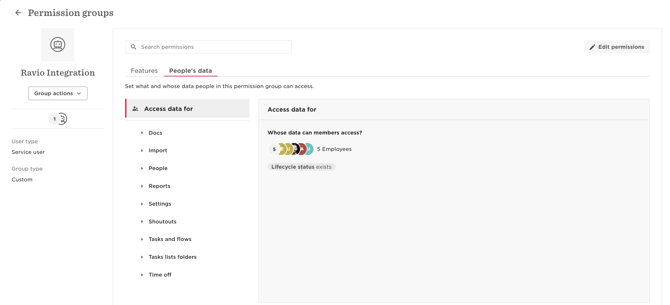
- Edit Access Rights: Click the Access data for button.
- Set Filter Condition:
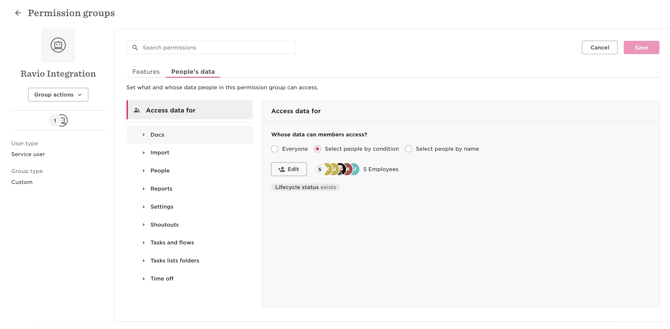
- Select Select people by condition.
- Click the Edit button to set the criteria (e.g., specific sites, departments, or lifecycle statuses).
- Example (Exclude specific employees): Choose “Full name” or “Employee ID”, and add employee-specific exclusions similar to the below screenshot:
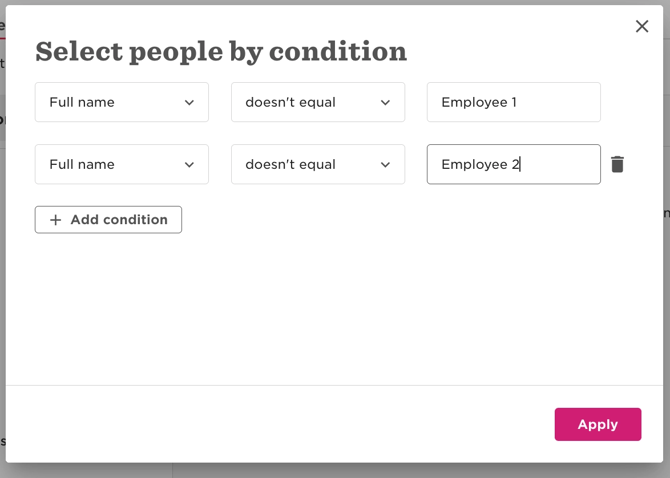
- Apply and Save: Click Apply and then save your changes.